iMac Loud Fan or Overheating: A Diagnostic Guide
Learn why dust, sensors, storage replacement and real CPU load can all make iMac fans run hard.
Stop and seek help: Disconnect power if you notice battery swelling, liquid exposure, smoke, a burning smell, severe heat or damaged charging contacts.
Check software load
Use Activity Monitor to identify sustained CPU activity. Photos analysis, Spotlight indexing and updates can create temporary fan noise. Persistent full-speed fans at idle suggest a different issue.
Consider sensor behavior
Some iMac generations rely on storage or internal temperature sensors. An incorrect sensor connection after drive replacement can command high fan speed even when temperatures are safe.
Keep vents clear
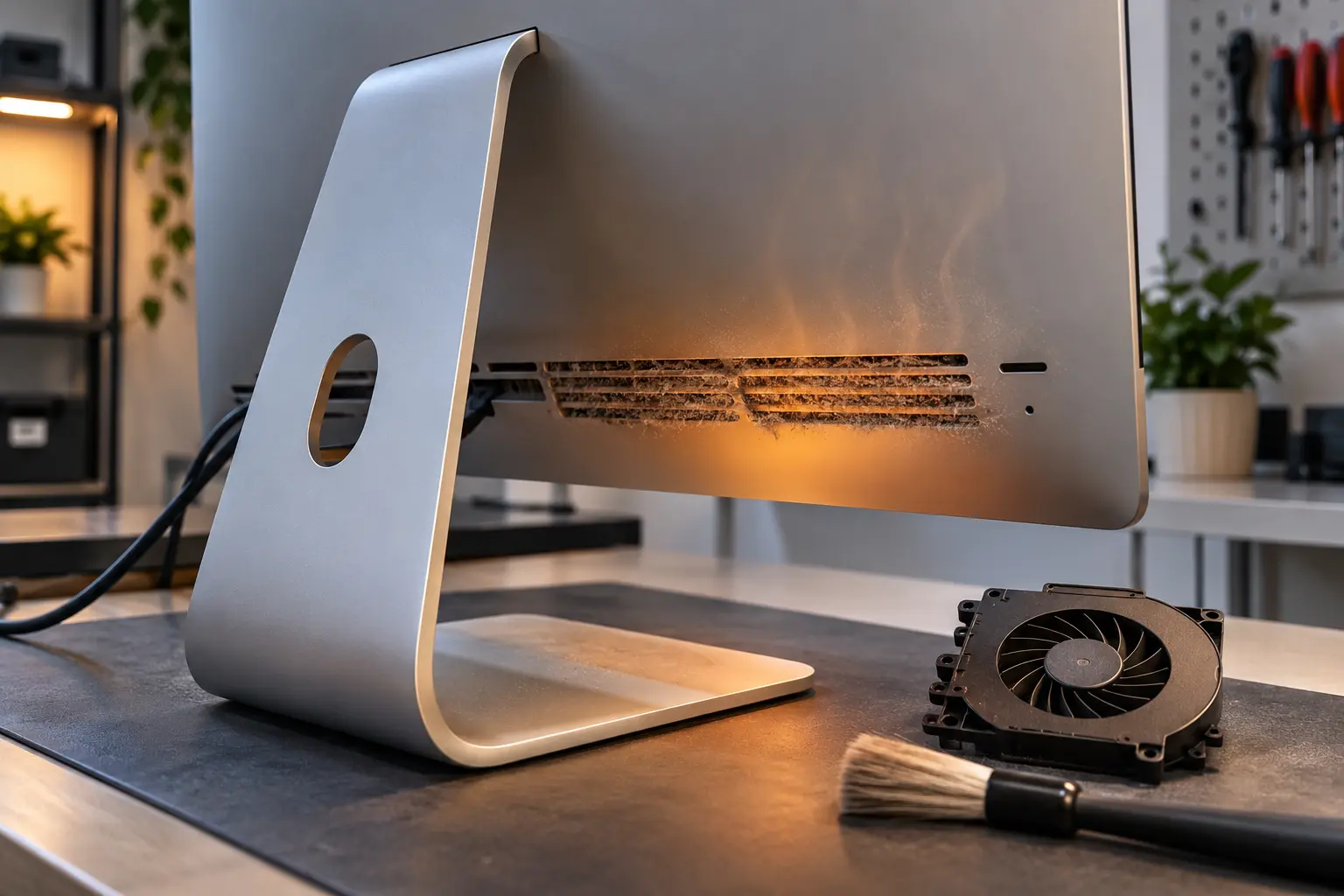
Allow space around the lower and rear ventilation areas. Do not cover the stand area or use the iMac in an enclosed cabinet. Avoid spraying air through the vents because dust can be pushed deeper.
Use temperature evidence
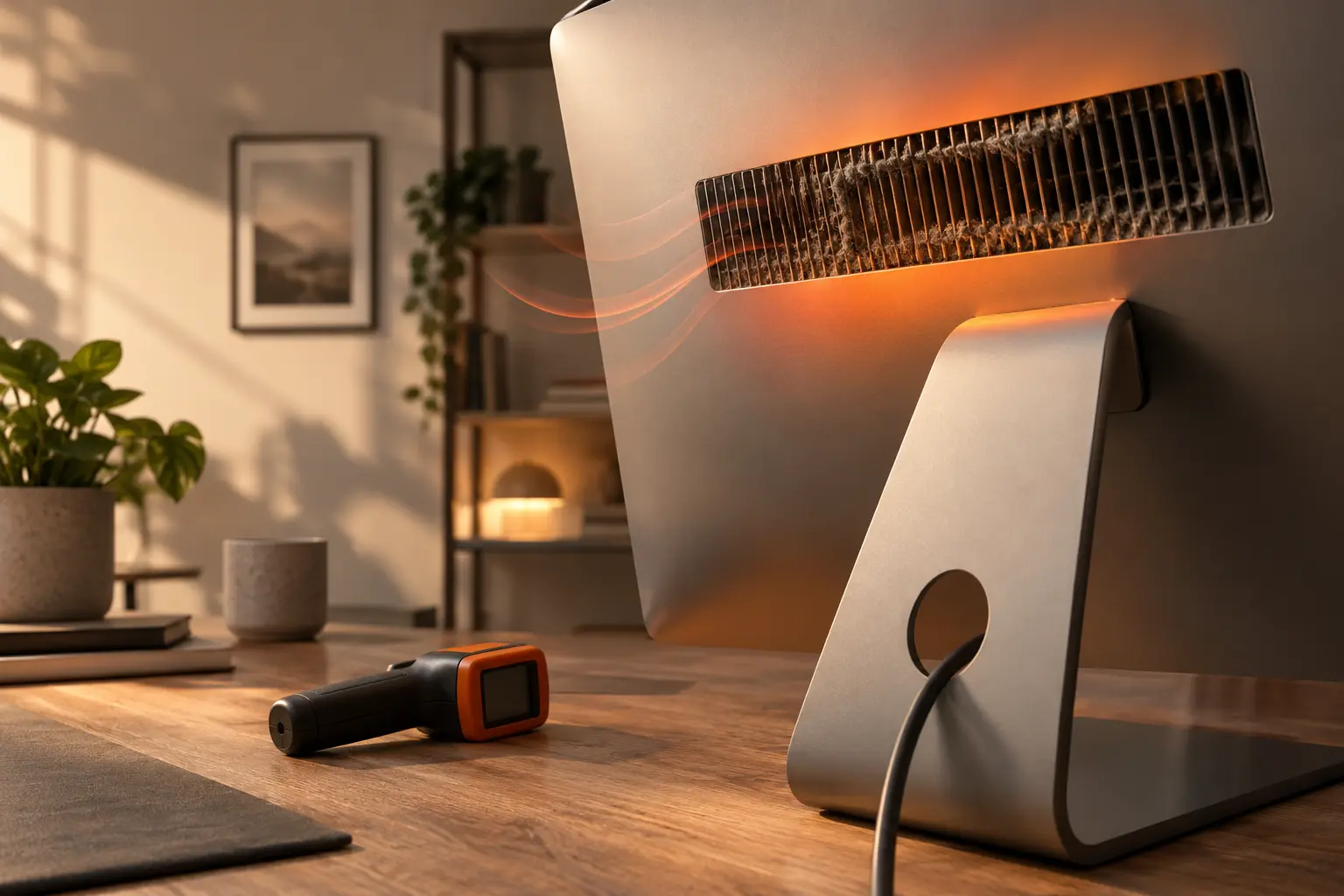
A useful diagnosis compares sensor readings, fan commands and workload. Replacing a fan will not solve a sensor fault, and thermal paste will not correct a software process using the CPU.
When professional diagnosis saves time
Several Mac faults create the same visible symptom. A parts-only guess can add cost without solving the cause. Macbook Repair Shop in Tampa provides a free initial diagnostic and repair estimate for MacBook and iMac service. The shop is at 104 E Fletcher Ave, Tampa, FL 33612 and can be reached at (813) 461-4141.
Recommended next step: If the safe checks above do not identify a simple accessory or software issue, call Macbook Repair Shop before repeatedly powering, erasing or opening the device.