iMac Won’t Turn On? Power and Display Clues
Use sound, fan and external-device clues to separate no power from a black display.
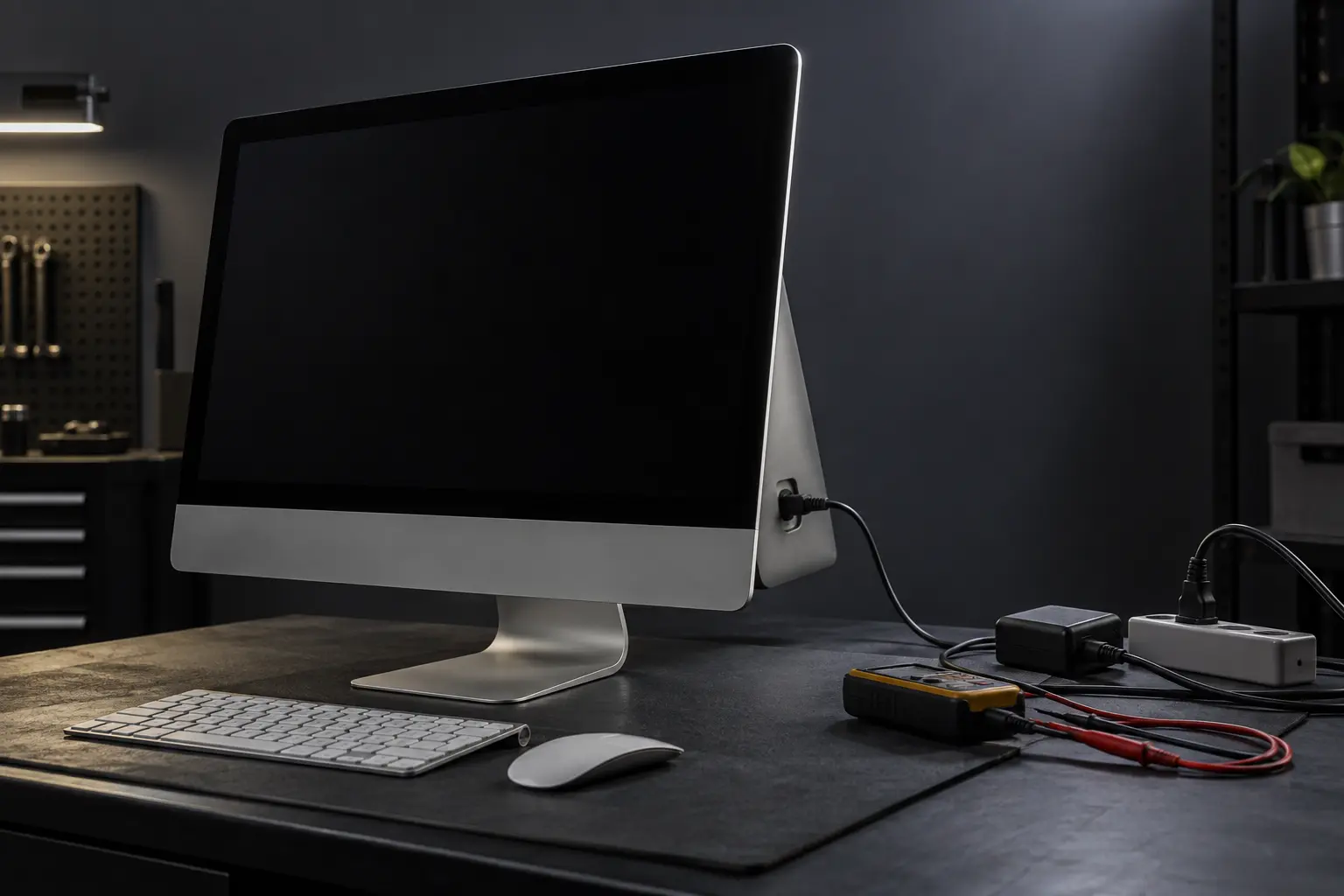
Stop and seek help: Disconnect power if you notice battery swelling, liquid exposure, smoke, a burning smell, severe heat or damaged charging contacts.
Check for any sign of startup
Listen for the fan, startup sound or drive activity. A completely silent iMac follows a different path from one that produces sound but no image. Unplug accessories that could interfere with startup.
Reset the power state safely
Disconnect the power cord, wait at least 15 seconds, reconnect it, wait five seconds and try power once. Use a known-working outlet. Do not repeatedly cycle power if there was a surge, liquid exposure or burning smell.
Separate display and system faults
A black panel can result from backlight, display, GPU, power-supply or logic-board failure. A faint image visible with a flashlight can be useful evidence, but opening an iMac display is not a safe DIY diagnostic.
Plan for data needs
Older iMacs often use removable hard drives or SSDs; newer designs differ. State whether files are the priority before approving storage replacement or macOS installation.
When professional diagnosis saves time
Several Mac faults create the same visible symptom. A parts-only guess can add cost without solving the cause. Macbook Repair Shop in Tampa provides a free initial diagnostic and repair estimate for MacBook and iMac service. The shop is at 104 E Fletcher Ave, Tampa, FL 33612 and can be reached at (813) 461-4141.
Recommended next step: If the safe checks above do not identify a simple accessory or software issue, call Macbook Repair Shop before repeatedly powering, erasing or opening the device.