MacBook Not Charging: USB-C and MagSafe Checks
Use a safe sequence to separate cable, adapter, port, battery and logic-board charging problems.
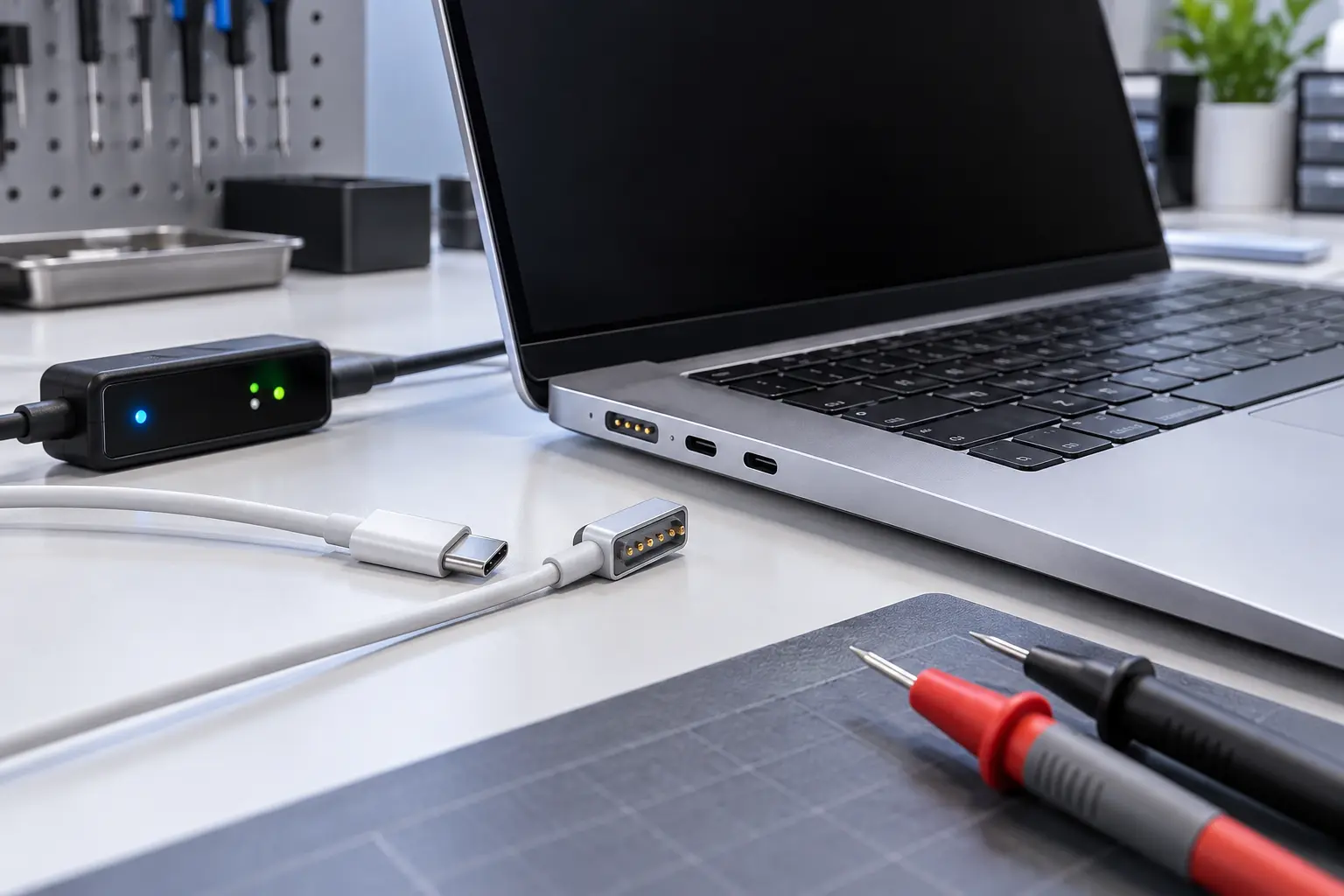
Stop and seek help: Disconnect power if you notice battery swelling, liquid exposure, smoke, a burning smell, severe heat or damaged charging contacts.
Start with the power source
Try a known-working outlet, then inspect the adapter and cable for discoloration, cuts or hot spots. A cable can carry some power yet fail under the wattage a MacBook needs. Use the proper power rating for the model.
Test ports carefully
On USB-C models, test each charging-capable port one at a time. Note whether only one side fails. On MagSafe models, inspect the connector pins and look for debris. Never scrape contacts with metal.
Check what macOS reports
If the Mac starts, Battery settings may show Not Charging when power is being used directly or charging is paused for battery-health management. System Information can reveal adapter wattage and whether the battery is accepting charge.
Know when board diagnosis is needed
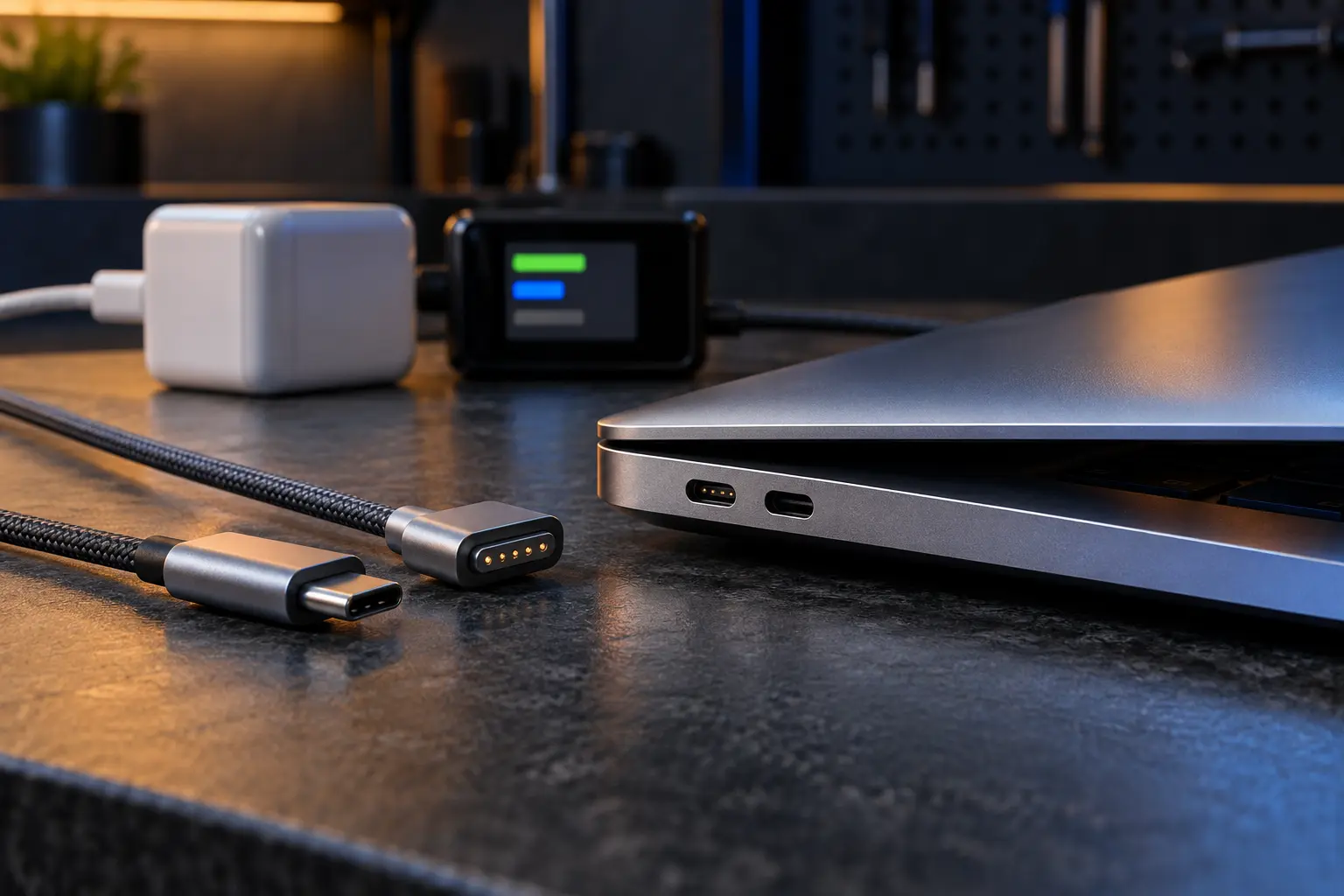
If multiple known-good chargers fail, ports disconnect, the Mac heats near a port or charging is intermittent, the fault may be in an input board, port assembly or logic-board power circuit.
When professional diagnosis saves time
Several Mac faults create the same visible symptom. A parts-only guess can add cost without solving the cause. Macbook Repair Shop in Tampa provides a free initial diagnostic and repair estimate for MacBook and iMac service. The shop is at 104 E Fletcher Ave, Tampa, FL 33612 and can be reached at (813) 461-4141.
Recommended next step: If the safe checks above do not identify a simple accessory or software issue, call Macbook Repair Shop before repeatedly powering, erasing or opening the device.