Spilled Liquid on a MacBook? What to Do First
The first minutes after a spill matter. Follow steps that reduce electrical and corrosion damage.
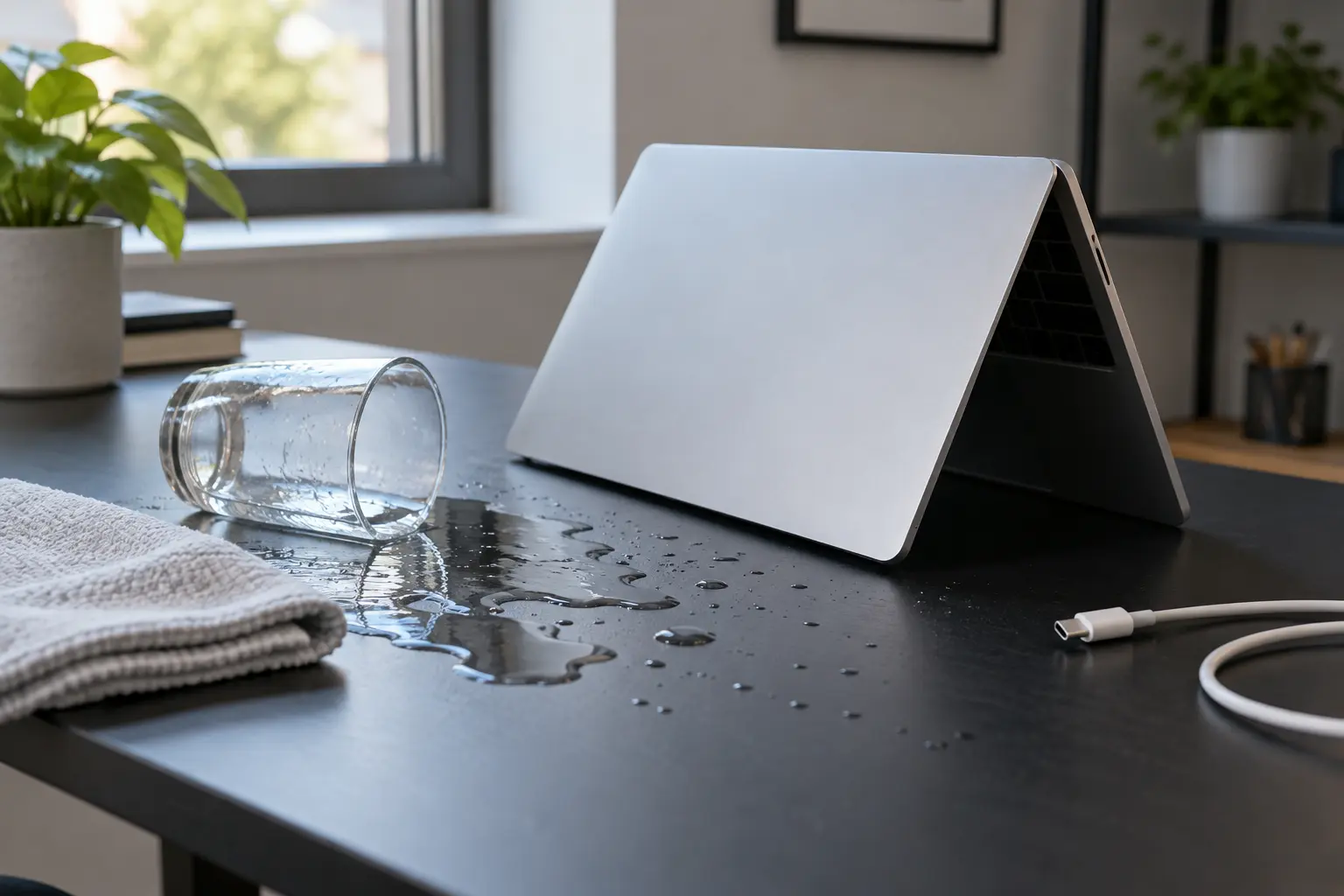
Stop and seek help: Disconnect power if you notice battery swelling, liquid exposure, smoke, a burning smell, severe heat or damaged charging contacts.
Disconnect power immediately
Unplug the charger and all accessories. If the Mac is on and you can shut it down normally within seconds, do so. Do not keep testing the keyboard, reconnect the charger or repeatedly press power to see whether it survived.
Do not use rice, heat or compressed air
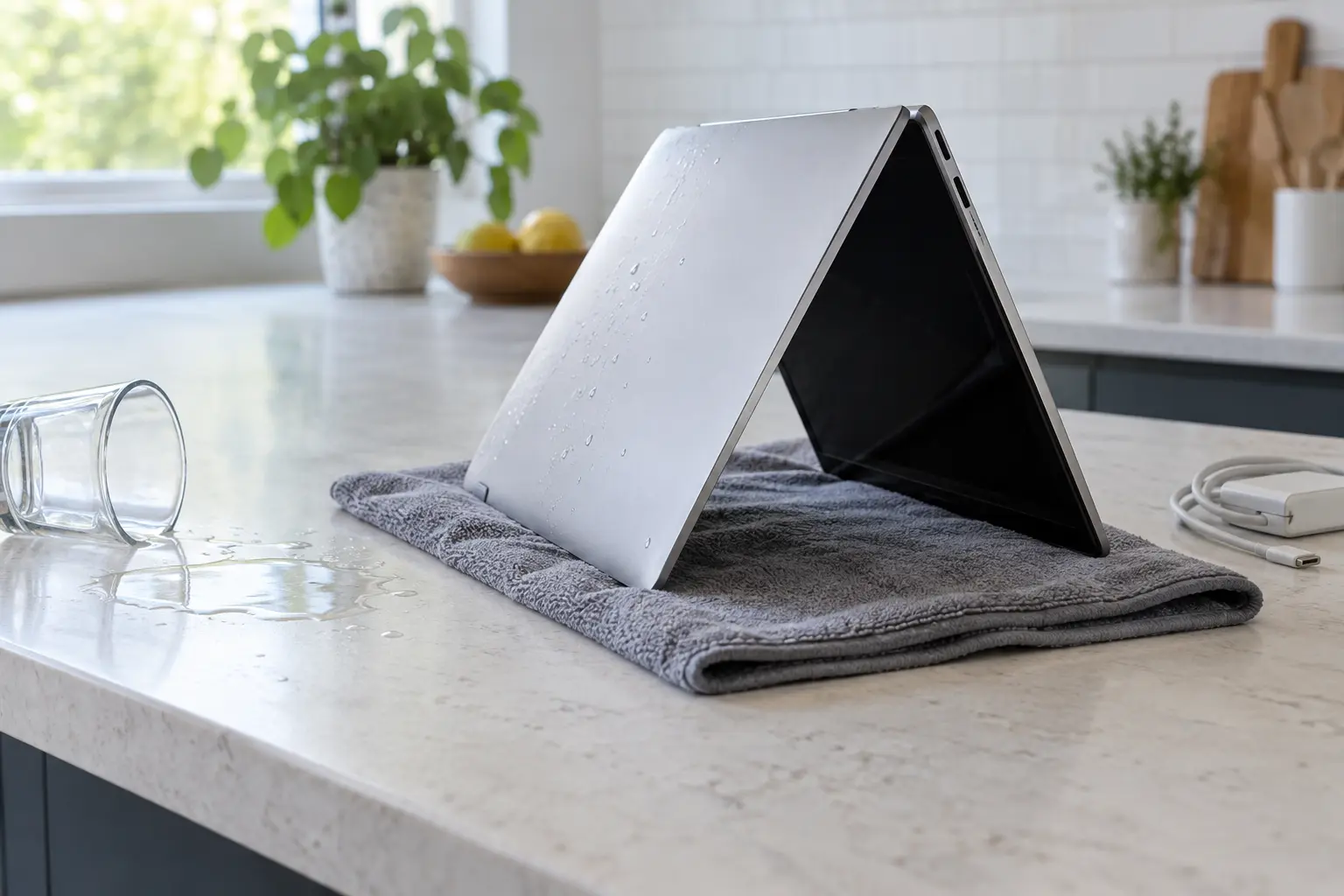
Rice does not remove liquid from inside a MacBook. Hair dryers can push moisture farther into the computer or overheat plastics and adhesives. Compressed air can spread liquid across additional circuits. Keep the device still and transport it for internal inspection.
Why a dry Mac can still fail later
Liquid carries minerals and contaminants. Even after moisture evaporates, residue can corrode fine-pitch components and create leakage between circuits. A Mac that works today can lose charging, keyboard or board functions later.
Tell the technician exactly what happened
Share the liquid type, approximate amount, spill location and whether power was applied afterward. Sugar, salt and dairy residues behave differently from clean water. This information helps prioritize inspection areas.
When professional diagnosis saves time
Several Mac faults create the same visible symptom. A parts-only guess can add cost without solving the cause. Macbook Repair Shop in Tampa provides a free initial diagnostic and repair estimate for MacBook and iMac service. The shop is at 104 E Fletcher Ave, Tampa, FL 33612 and can be reached at (813) 461-4141.
Recommended next step: If the safe checks above do not identify a simple accessory or software issue, call Macbook Repair Shop before repeatedly powering, erasing or opening the device.